

- Code: Try an example Colab Colab notebook.
- Video: Watch a walkthrough video.
- Example: Quick Keras and Sklearn demo notebook
How it works
- Log data: From your script, log config and summary data.
- Customize the chart: Pull in logged data with a GraphQL query. Visualize the results of your query with Vega, a powerful visualization grammar.
- Log the chart: Call your own preset from your script with
wandb.plot_table().
Log charts from a script
Builtin presets
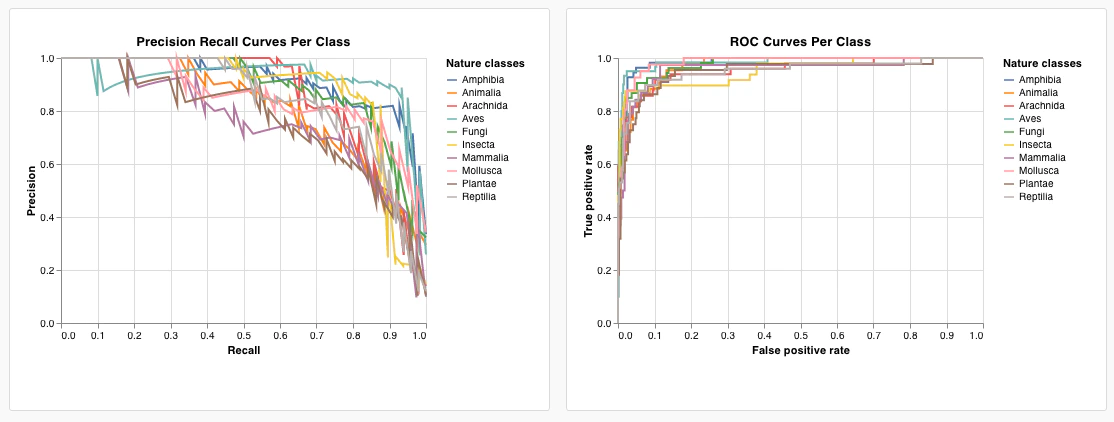
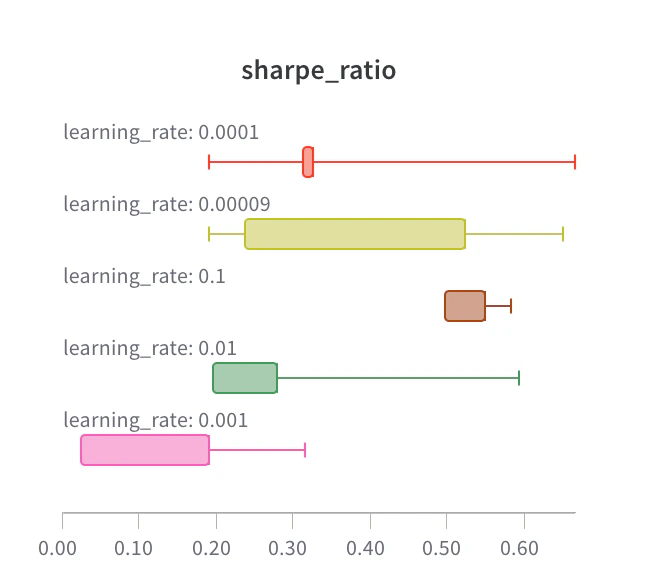
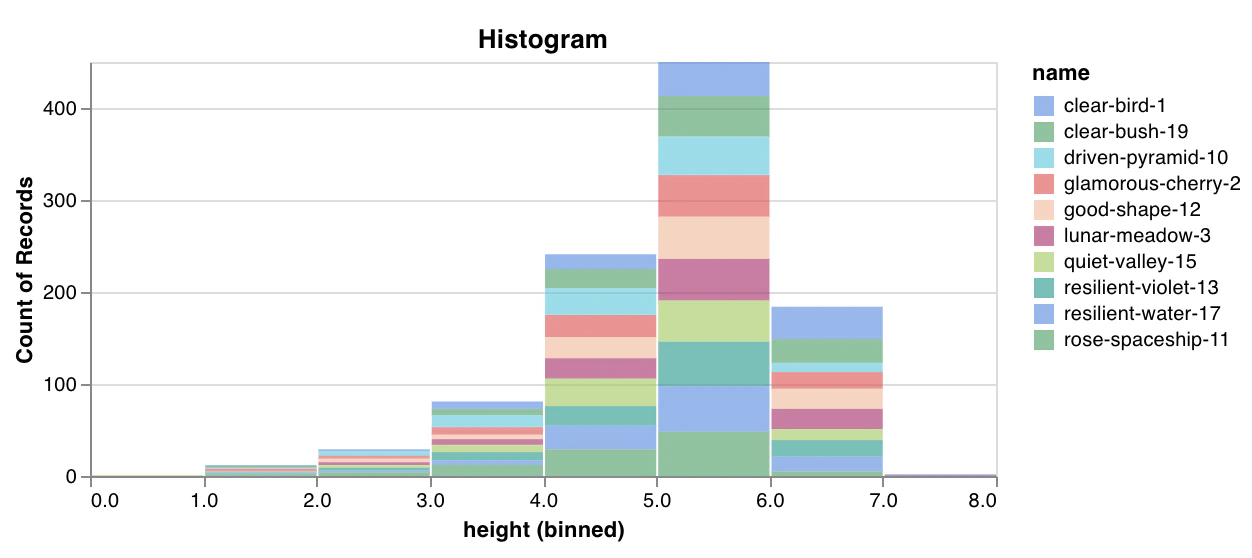
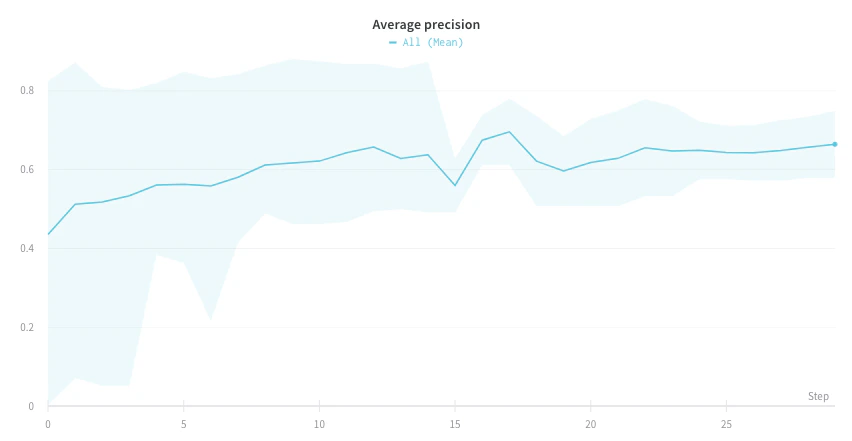
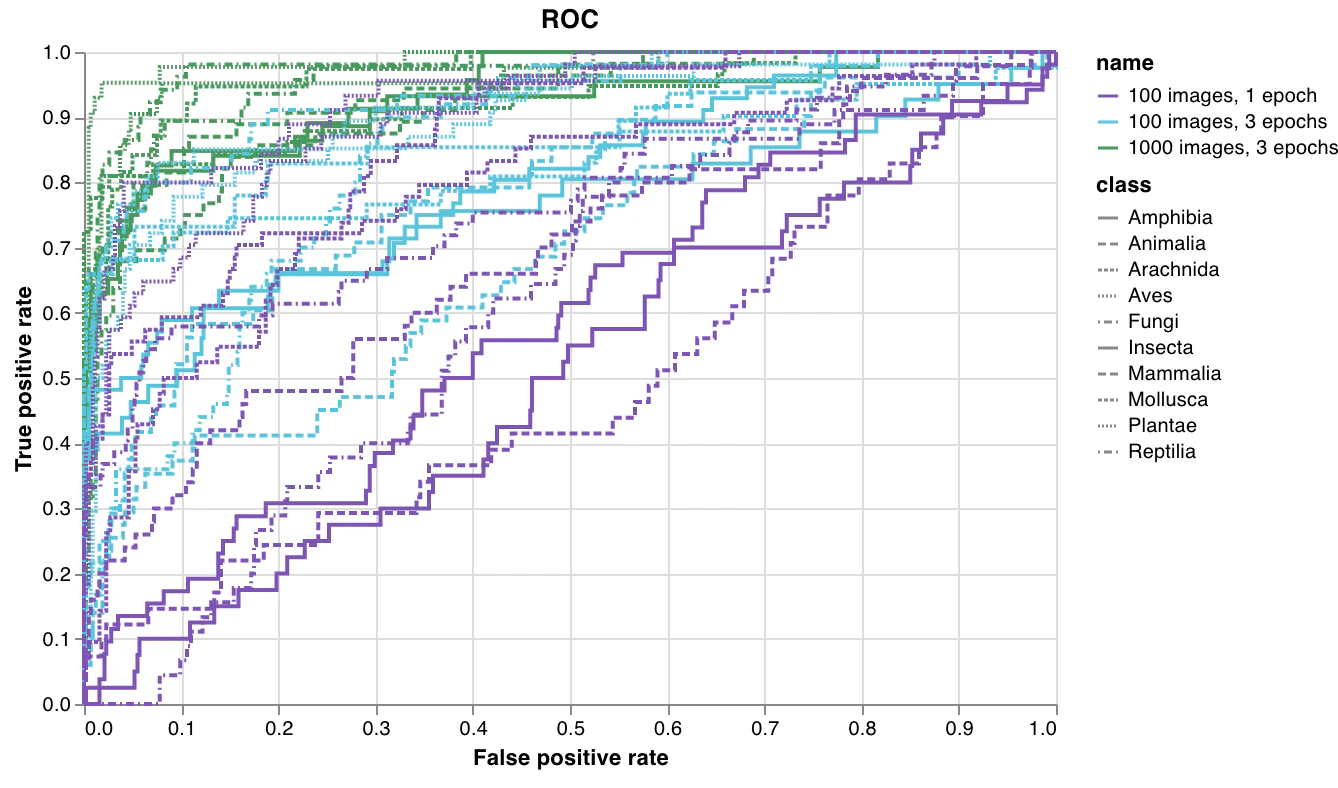
W&B has a number of builtin chart presets that you can log directly from your script. These include line plots, scatter plots, bar charts, histograms, PR curves, and ROC curves.- Line plot
- Scatter plot
- Bar chart
- Histogram
- PR curve
- ROC curve
wandb.plot.line()Log a custom line plot—a list of connected and ordered points (x,y) on arbitrary axes x and y.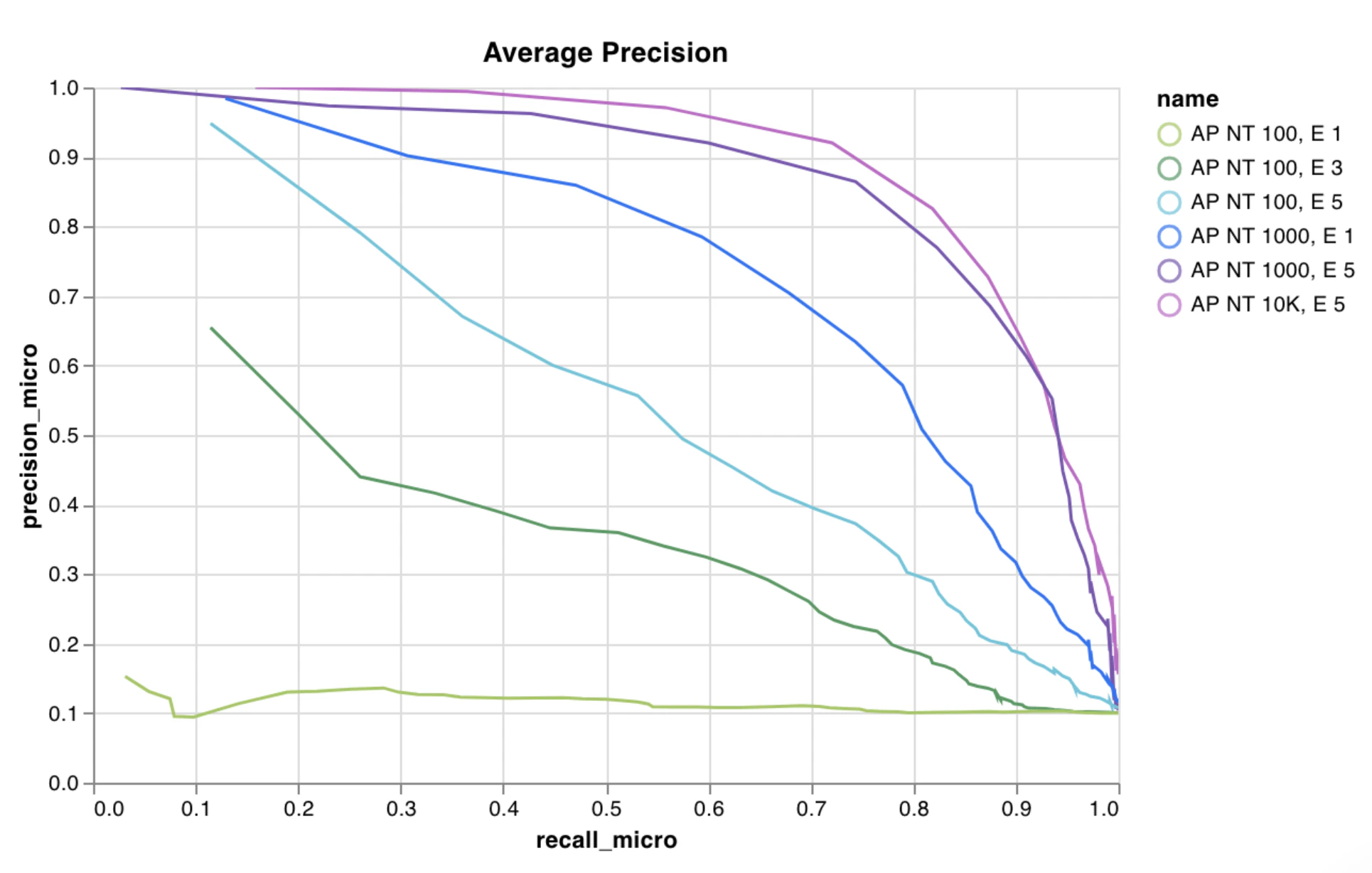
Custom presets
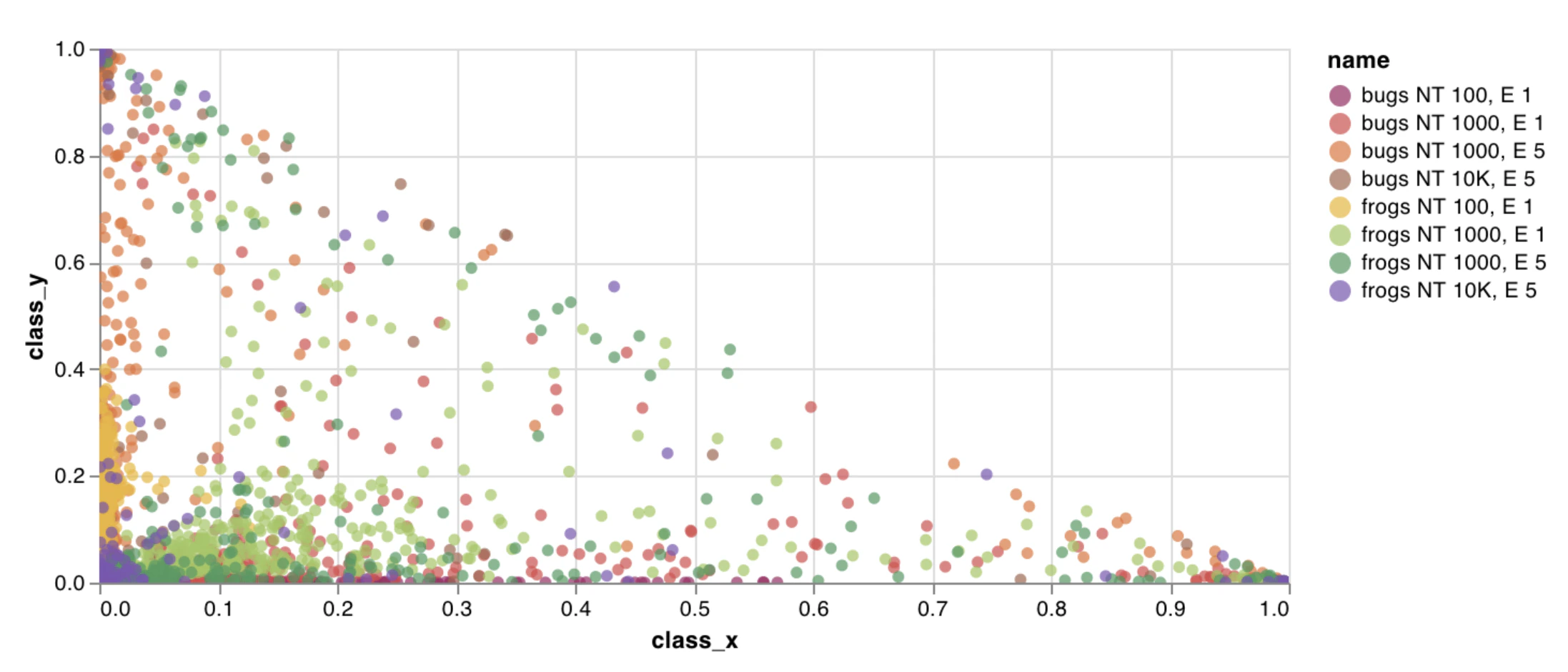
Tweak a builtin preset, or create a new preset, then save the chart. Use the chart ID to log data to that custom preset directly from your script. Try an example Google Colab notebook.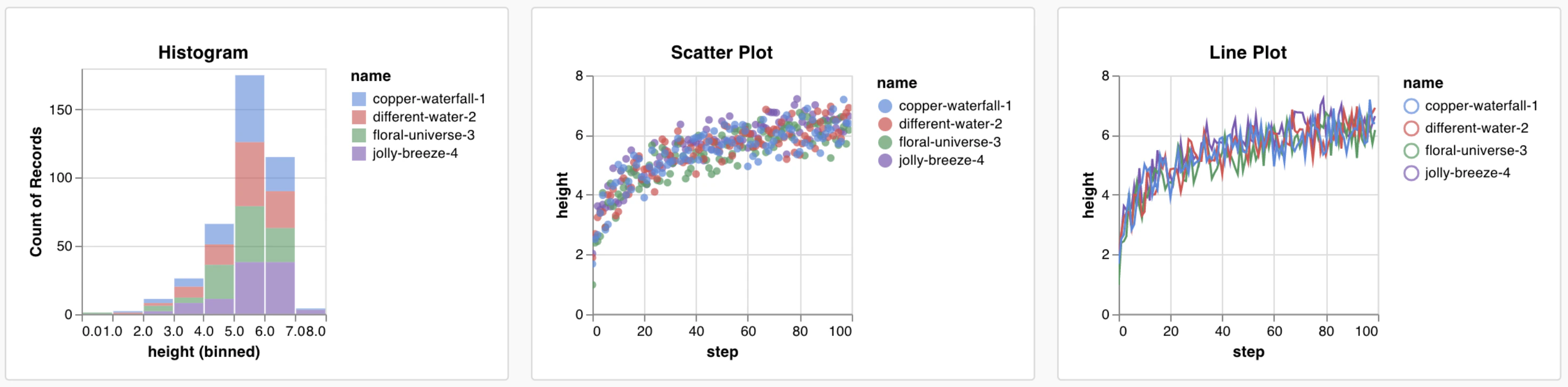
Log data
You can log the following data types from your script and use them in a custom chart:- Config: Initial settings of your experiment (your independent variables). This includes any named fields you’ve logged as keys to
wandb.Run.configat the start of your training. For example:wandb.Run.config.learning_rate = 0.0001 - Summary: Single values logged during training (your results or dependent variables). For example,
wandb.Run.log({"val_acc" : 0.8}). If you write to this key multiple times during training viawandb.Run.log(), the summary is set to the final value of that key. - History: The full time series of the logged scalar is available to the query via the
historyfield - summaryTable: If you need to log a list of multiple values, use a
wandb.Table()to save that data, then query it in your custom panel. - historyTable: If you need to see the history data, then query
historyTablein your custom chart panel. Each time you callwandb.Table()or log a custom chart, you’re creating a new table in history for that step.
How to log a custom table
Usewandb.Table() to log your data as a 2D array. Typically each row of this table represents one data point, and each column denotes the relevant fields/dimensions for each data point which you’d like to plot. As you configure a custom panel, the whole table will be accessible via the named key passed to wandb.Run.log()(custom_data_table below), and the individual fields will be accessible via the column names (x, y, and z). You can log tables at multiple time steps throughout your experiment. The maximum size of each table is 10,000 rows. Try an example a Google Colab.
Customize the chart
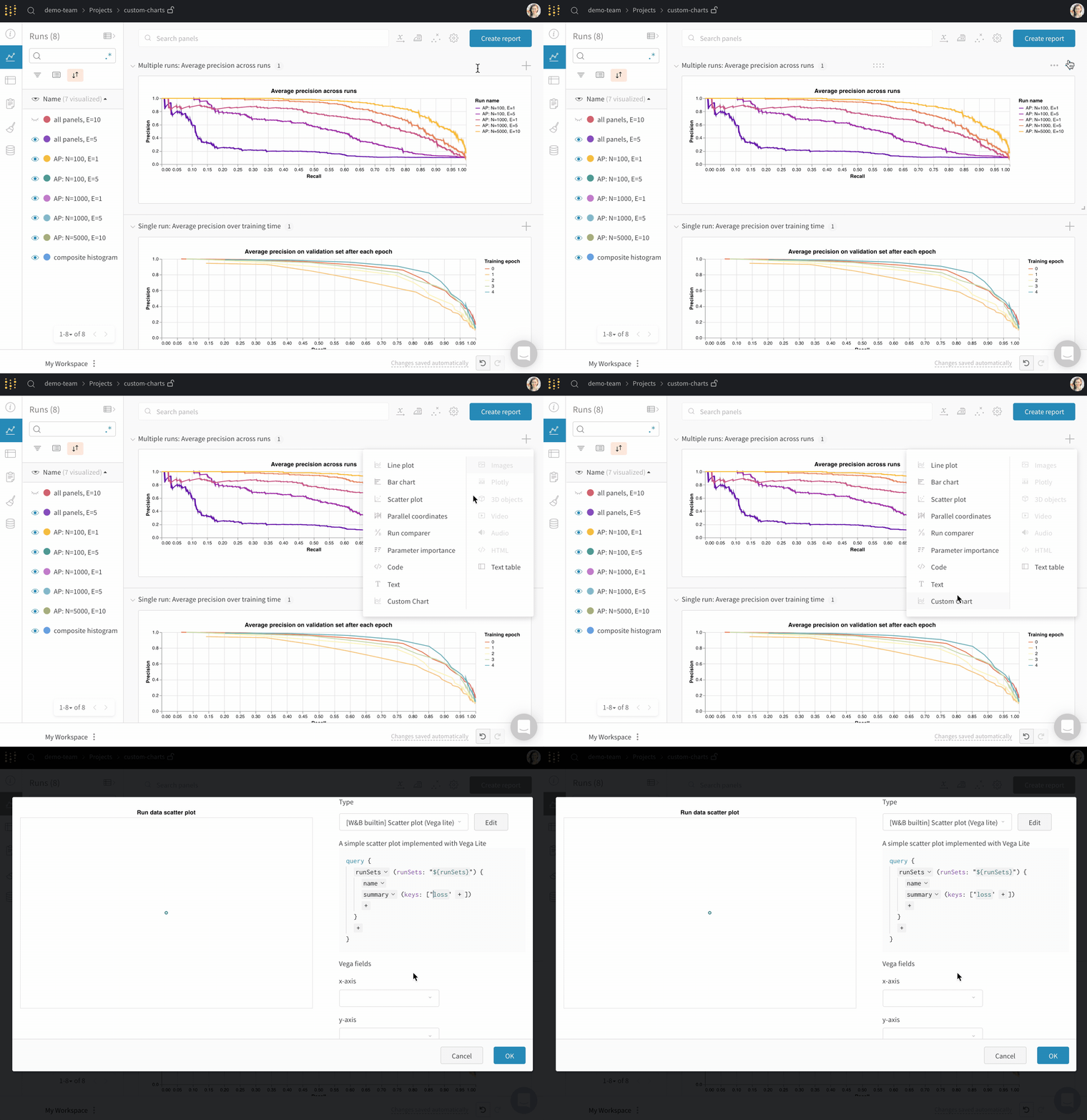
Add a new custom chart to get started, then edit the query to select data from your visible runs. The query uses GraphQL to fetch data from the config, summary, and history fields in your runs.Build the GraphQL query
The custom chart editor runs a GraphQL query over the runs you selected in the project workspace or report. In the query editor, add the fields you need. You can pick fromconfig, summary, history, summaryTable, and historyTable so you do not need to write the query from scratch for most cases.
Each source in the query maps to different logged data:
- Config pulls run configuration values (hyperparameters and other settings).
- Summary pulls summary values. By default, the summary for a key logged with
wandb.Run.log()holds the last value written for that key. To use a different aggregate, callwandb.Run.define_metric(..., summary=...)with"min","max","mean","best", or"none". To set a value directly, assignwandb.Run.summary["key"] = value. - History pulls scalar time series from run history (for example
lossoraccuracyat each step). Use history when you need the full curve, not only the final number. summaryTableloads awandb.Tablefrom the run summary. Use it when the table you care about is stored as a single snapshot on the run (for example one confusion matrix you log once at the end).historyTableloads awandb.Tablefrom run history. Each time you log a table withwandb.Run.log(), you add another step to run history that includes that table. UsehistoryTablewhen the table changes over time or when you want to enable the step selector in the custom chart editor (see How do you show a step slider in a custom chart?).
summaryTable and historyTable, set tableKey to the dictionary key you used inside wandb.Run.log(), not to a column name inside the wandb.Table.
The following examples cover common cases:
- Plot columns from a table you log at each step (for example a PR curve): add
historyTable, settableKeyto your logged key (for examplepr_curve), then map table columns in Chart fields. See the custom charts tutorial. - Plot columns from a table that lives in summary (for example class scores for a composite histogram): add
summaryTable, settableKeyto that key (the tutorial usesclass_scores). See Bonus: composite histograms. - Plot a scalar metric over training steps: add the metric from history. If you only add it from summary, the chart shows a single value per run.
runSets_ and reflect the selected query fields. Choose them from the dropdowns next to each ${field:...} placeholder instead of typing them manually.
If a column never appears, confirm the key exists on the selected runs, open the run page to verify how the data was logged, and check whether summaryTable or historyTable matches that logging pattern.
Custom charts use this GraphQL-based panel query. Query panels use a different expression language and are documented separately.
Custom visualizations
Select a Chart in the upper right corner to start with a default preset. Next, select Chart fields to map the data you’re pulling in from the query to the corresponding fields in your chart. The following image shows an example on how to select a metric then mapping that into the bar chart fields below.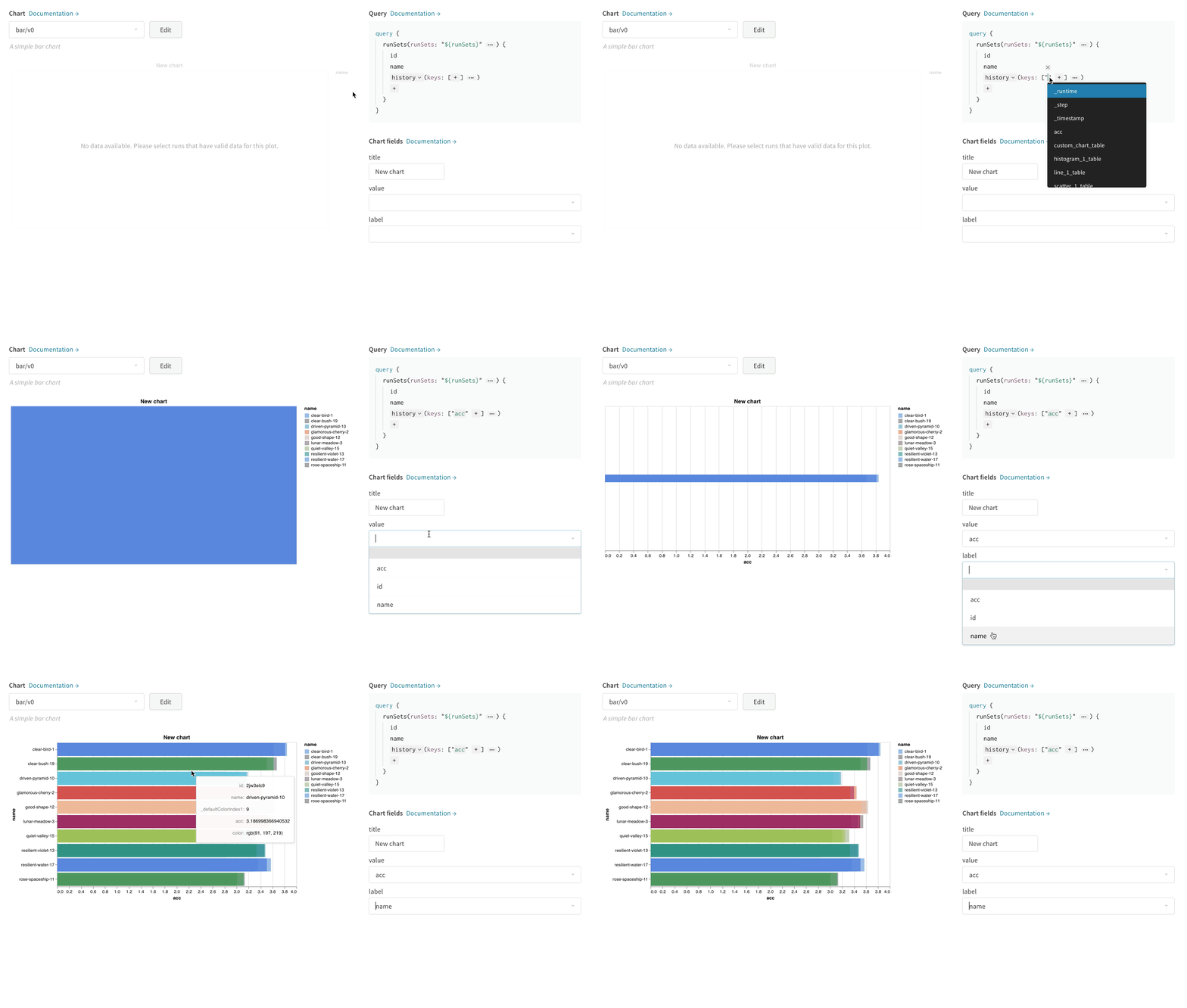
How to edit Vega
Click Edit at the top of the panel to go into Vega edit mode. Here you can define a Vega specification that creates an interactive chart in the UI. You can change any aspect of the chart. For example, you can change the title, pick a different color scheme, show curves as a series of points instead of as connected lines. You can also make changes to the data itself, such as using a Vega transform to bin an array of values into a histogram. The panel preview will update interactively, so you can see the effect of your changes as you edit the Vega spec or query. Refer to the Vega documentation and tutorials . Field references To pull data into your chart from W&B, add template strings of the form"${field:<field-name>}" anywhere in your Vega spec. This will create a dropdown in the Chart Fields area on the right side, which users can use to select a query result column to map into Vega.
To set a default value for a field, use this syntax: "${field:<field-name>:<placeholder text>}"
Saving chart presets
Apply any changes to a specific visualization panel with the button at the bottom of the modal. Alternatively, you can save the Vega spec to use elsewhere in your project. To save the reusable chart definition, click Save as at the top of the Vega editor and give your preset a name.Articles and guides
- The W&B Machine Learning Visualization IDE
- Visualizing NLP Attention Based Models
- Visualizing The Effect of Attention on Gradient Flow
- Logging arbitrary curves
Common use cases
- Customize bar plots with error bars
- Show model validation metrics which require custom x-y coordinates (like precision-recall curves)
- Overlay data distributions from two different models/experiments as histograms
- Show changes in a metric via snapshots at multiple points during training
- Create a unique visualization not yet available in W&B (and hopefully share it with the world)